

Welcome to DriveMaker!
Note: A new version 12 is available!
Please check the DriveMaker page for the latest download.
What is DriveMaker?
DriveMaker is a FREE tool that maps a drive letter in Windows to an FTP, SFTP, FTPS, Amazon S3, and S3 compatible storage, such as Wasabi, TrueNas, etc.. FTPS is “explicit” FTP over SSL and is considered as secure as online banking because user name, password, commands, and all data are always encrypted.
For example, run DriveMaker to map X:\ to your FTP site. Once connected, use the X: drive like a normal drive to add and edit documents.
How to Get a Free DriveMaker Plus License
The DriveMaker Plus license is a one-time purchase. You can buy licenses or you could get one for free by doing the following: Do you own a blog or company website? Simply add a permanent backlink to https://backupchain.com, preferably using the logo or the BackupChain brand name, let us know and we’ll email you a free license code.

Step-by-Step Video Tutorials
Check out our new Step-by-Step Video Tutorials!
Quick Setup
Open DriveMaker, click “Add Site”, and enter the server address, user name and password. Chose a drive letter and click ‘Connect to Site’.
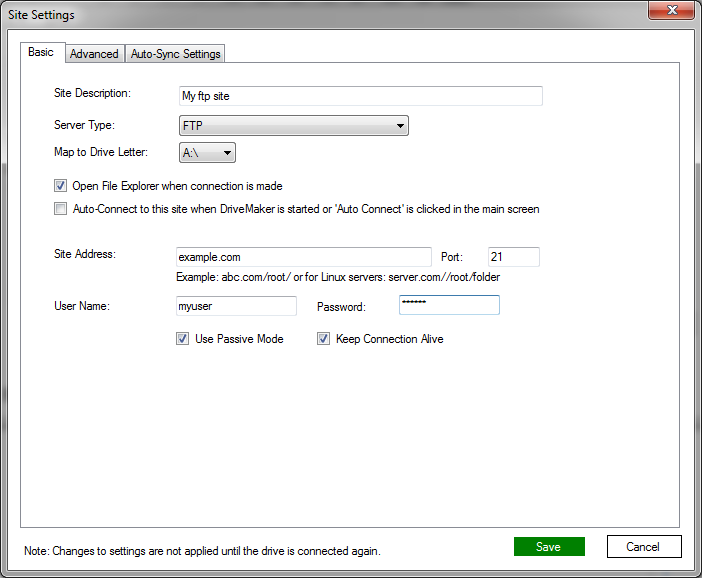
Enter FTP site addresses like this: ftp.myftpserver.com/myfolder or use the IP address: 123.123.120.49/folder
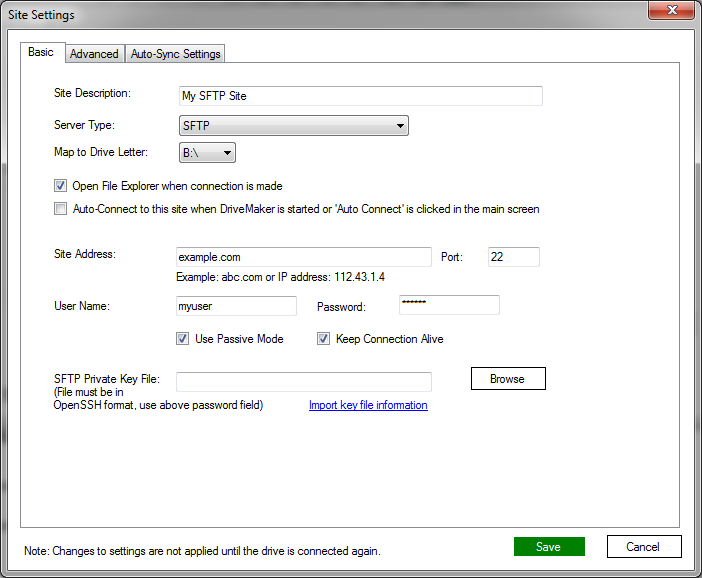
Enter SFTP site address as: sftpserver.com or use the IP address: 123.21.12.31/folder. Do not enter SFTP prefixes like sftp://
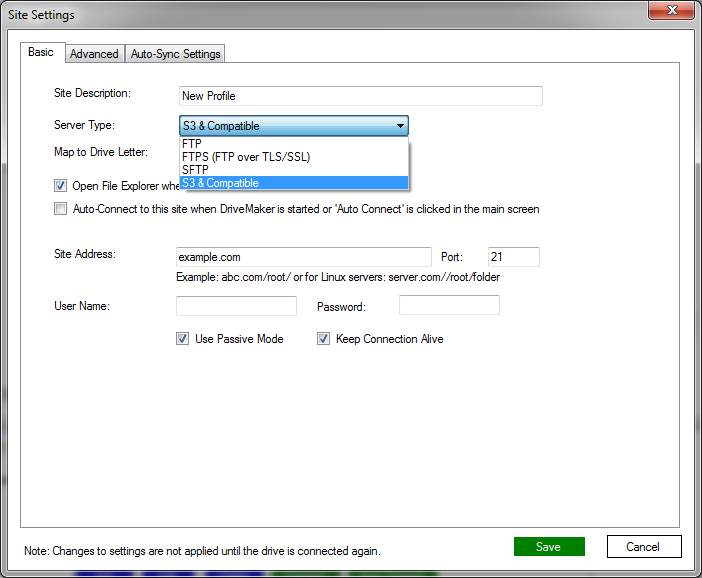
That’s all!
Click Connect and your new drive letter is visible to all applications running in the same user session, including anti-virus programs and the command prompt.
Sample Settings
Map FTP Site to Drive A: Example
Map SFTP Site to Drive B: Example
Map Amazon S3, TrueNAS, Wasabi, or other S3 Compatible Storage to Drive X: Example

Map S3 Compatible Storage to Drive X: Example
For S3 compatible storage, you also need to specify the Service URL and region as shown in the example below. Do not enter https:// prefixes. Use the option “Use SSL” instead.
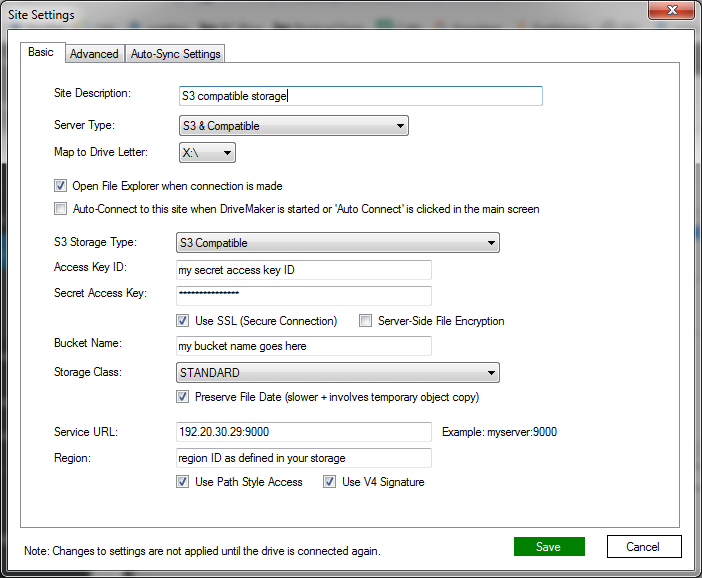
In the example above, 192.20.30.29 is the IP of the server and 9000 is the port number of the S3 service. Instead of the IP you could also enter the address, for example: myserver.com:9000
Questions or Suggestions?
Please email your questions and suggestions to support@backupchain.com
Thank you!